

چۈشەندۈرۈش
AI Chat Assistant by CodeCaste is a WordPress plugin that lets you build an AI-powered chatbot from your own documents — no coding required.
You upload your files (PDFs, Word documents, text files), the plugin reads and indexes them, and a floating chat widget appears on your website. When visitors ask questions, the AI searches your uploaded documents and gives accurate answers — using only the content you provided.
How It Works
- You upload documents (PDF, DOCX, TXT, MD) to the Knowledge Base.
- The plugin automatically extracts and indexes the text from those files.
- A chat widget appears on your website frontend.
- When a visitor asks a question, the AI finds the most relevant passages from your documents and answers using only that content.
- If the answer is not in your documents, the chatbot says so — it never makes up information.
Who Is This For?
- Clinics and healthcare providers — Index your service guides, fee charts, and patient FAQs.
- Businesses and agencies — Index your service brochures, pricing documents, and company FAQs.
- Educational institutions — Index course details, admission guides, and policies.
- Any WordPress website — Any site that wants an AI assistant answering questions from its own content.
Features
Knowledge Base
- Upload PDF, DOCX, TXT, and Markdown (.md) files.
- Pure-PHP PDF text reader is bundled — no server utilities or shell access are required.
- View and edit extracted document text directly inside your WordPress dashboard.
- When you edit and save a document, it is automatically re-indexed and shows a «Re-Indexed» status badge.
- Each document shows a live status: Indexed, Re-Indexed, Processing, or Failed.
Document Controls
- Priority — Assign High (100), Medium (50), or Low (20) weight to each document.
- Authoritative — Mark important documents (e.g. official price lists, policies) as Authoritative to give them higher ranking priority in search results.
- Scope — Set a document to be available site-wide (Global) or only on a specific WordPress page (Page-Specific).
- Public Toggle — Enable or disable individual documents from the active index with one click.
AI Provider Support
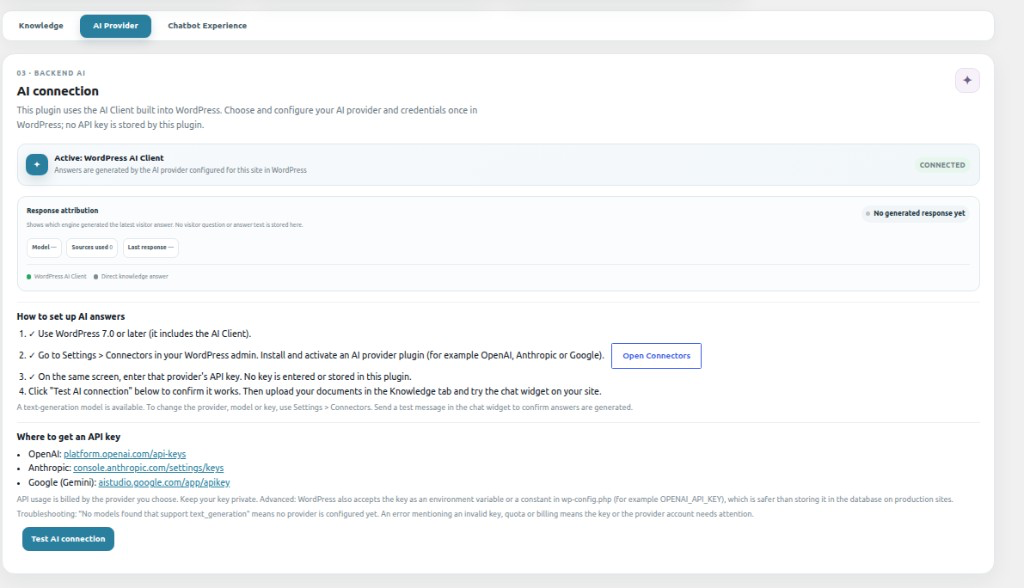
- WordPress AI Client — Uses the AI Client built into WordPress 7.0+. Choose and configure your AI provider once, under Settings > Connectors.
- Works with whichever text-generation provider your site has set up.
- Requires WordPress 7.0 or later. On older versions the plugin shows an update notice.
Chat Widget
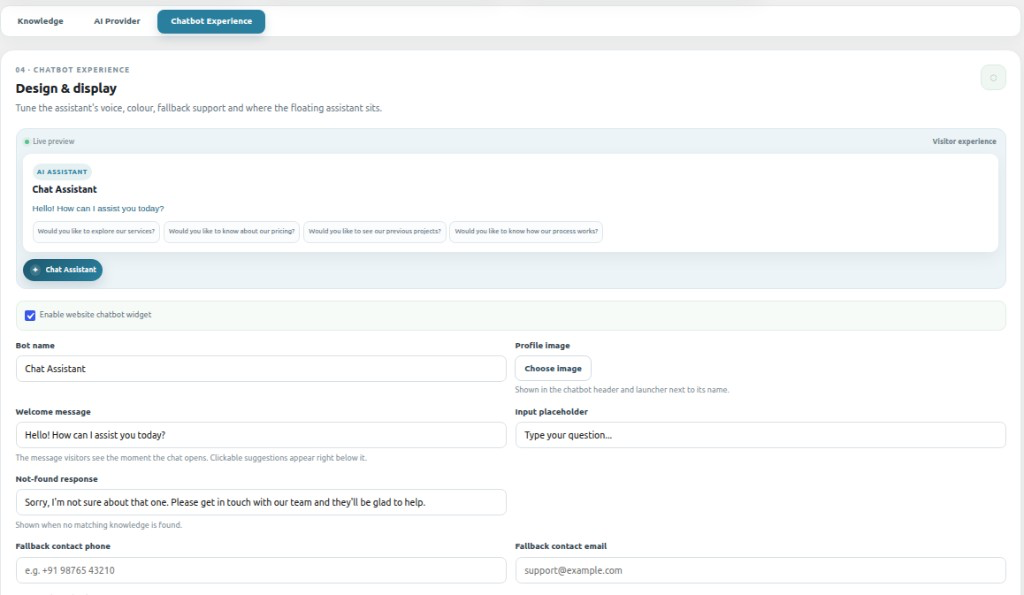
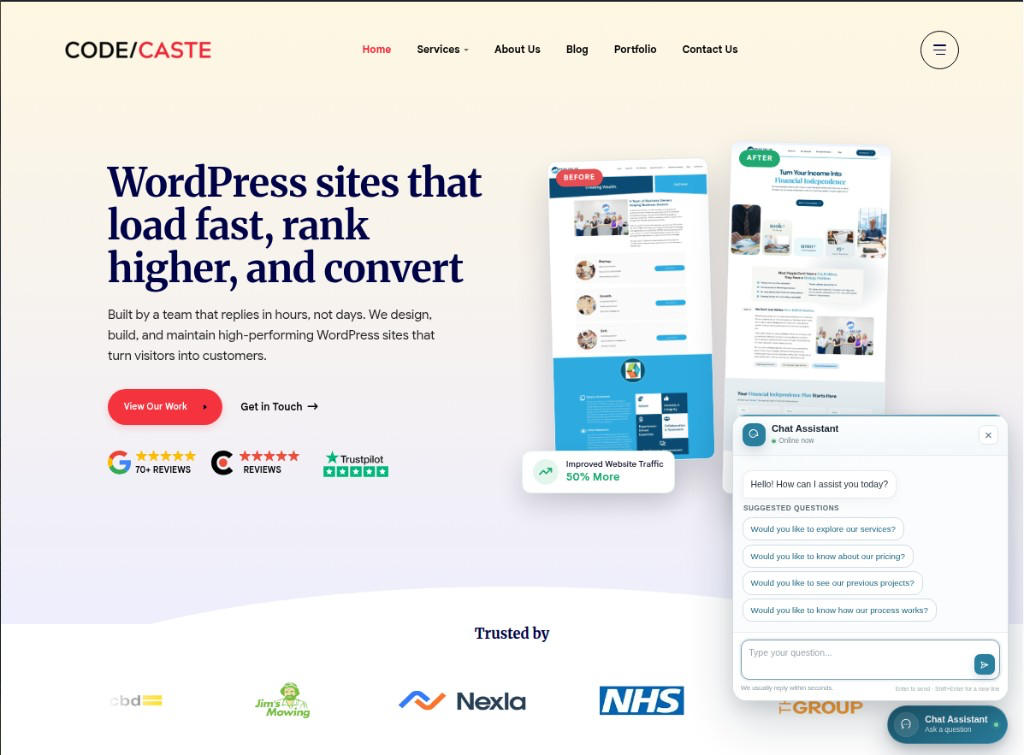
- Modern floating chat bubble on your website frontend.
- Responsive design — works on desktop, tablet, and mobile.
- Shows a live online indicator so visitors know the assistant is available.
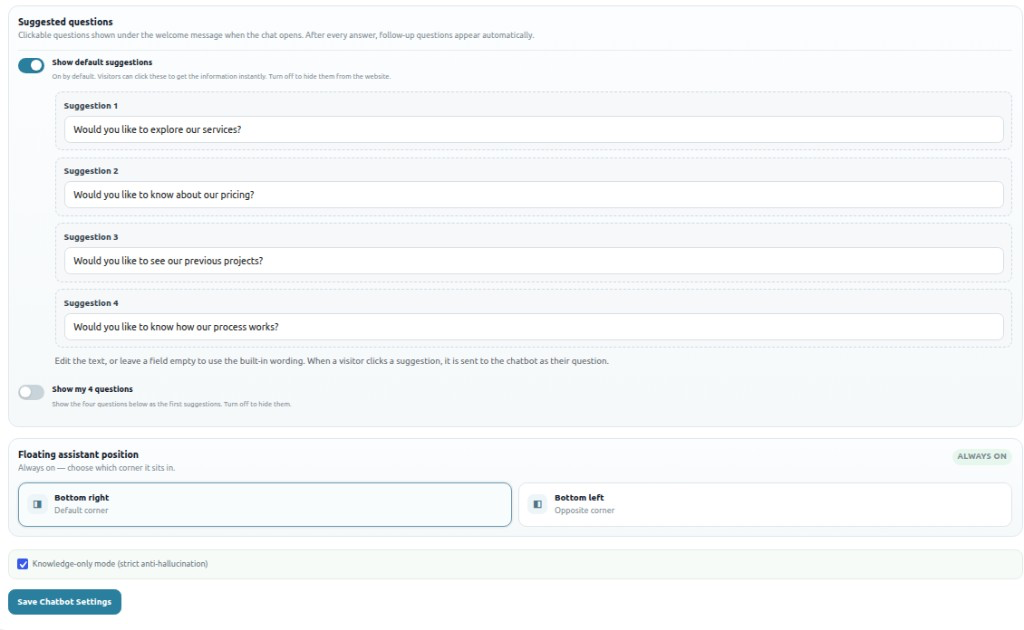
- Completely customisable position and appearance.
Security & Accuracy
- Strict anti-hallucination enforcement — the AI answers only from your documents.
- Prompt injection protection — malicious user instructions inside chat are ignored.
- Rate limiting — protects your API quota and server.
- No visitor data is stored or sent to third parties beyond the AI provider.
External Services
This plugin does not connect to any AI service directly. It generates answers through the WordPress AI Client, which sends requests to whichever AI provider the site administrator has configured under Settings > Connectors. Nothing is sent until a provider is configured and a visitor uses the chat widget.
When a visitor asks a question, the question, recent chat history, and the most relevant excerpts from your uploaded documents are passed to the WordPress AI Client and, from there, to your configured provider. Please review that provider’s terms of service and privacy policy.
You are responsible for informing your site visitors that their questions are processed by the AI provider you select.
Third-Party Libraries
- smalot/pdfparser 2.12.0 (LGPL-3.0)
Pure-PHP PDF text extraction library, bundled insideincludes/lib/pdfparser.
Lightly patched for WordPress coding standards compatibility.
Source: https://github.com/smalot/pdfparser
ئېكران كەسمىسى

ئورنىتىش
- Download the plugin zip file.
- In your WordPress dashboard go to Plugins > Add New > Upload Plugin.
- Upload the zip file and click Install Now.
- Click Activate Plugin.
- Go to AI Chat Assistant > Settings & AI in the WordPress admin sidebar.
- Go to Settings > Connectors and set up an AI provider.
- Return to AI Chat Assistant > Settings & AI and click Test AI connection, then try the chat widget.
- Go to AI Chat Assistant > Knowledge Base.
- Upload your PDF, DOCX, TXT, or MD files using the upload form.
- Wait for the status to show Indexed — your chatbot is now ready.
- Visit your website frontend and click the chat bubble to test it.
FAQ
-
What document formats are supported?
-
PDF, DOCX (Microsoft Word), TXT (plain text), and Markdown (.md) files are all supported.
-
Does the chatbot use my documents or does it answer from general AI knowledge?
-
It uses only your uploaded documents. The AI is instructed not to invent or add any information that is not present in your files. If it cannot find an answer in your documents, it tells the visitor so.
-
Do I need to install anything on my server?
-
No. A PDF reader is bundled with the plugin. You do not need any system tools or shell access.
-
Which AI provider should I use?
-
Any provider you set up under Settings > Connectors in WordPress 7.0+ (OpenAI, Anthropic, Google, and others). The plugin uses it automatically.
-
How do I connect an AI provider?
-
In WordPress itself, under Settings > Connectors. The chat assistant uses that connection automatically.
-
My site runs WordPress below 7.0
-
AI answers need the AI Client that ships with WordPress 7.0 and later. Update WordPress, then set up a provider under Settings > Connectors.
-
The chat says no AI model is available
-
No AI provider is set up yet. Set one up under Settings > Connectors.
-
Standard documents are searched with normal relevance scoring. Authoritative documents get a priority boost in the ranking algorithm — useful for marking your official policy documents, pricing sheets, or core guides so they take precedence over supplementary files.
-
What does «Re-Indexed» status mean?
-
When you edit the extracted text of a document using the in-dashboard editor and save it, the plugin automatically rebuilds the search index for that document. The status badge changes from «Indexed» to «Re-Indexed» to confirm the update was successful.
-
Is visitor data stored?
-
The plugin does not store visitor names, emails or chat transcripts in your database. It does keep a few small, temporary items: a short-lived rate-limit counter keyed by a hash of the visitor’s IP address (60 seconds), and temporary chat-session memory (up to 2 hours, deleted when the chat ends). If a visitor clicks the thumbs up/down button, the rating and the related message text (first 1,000 characters) are saved in a feedback table on your site. Visitor questions are also sent to your chosen AI provider; see «External Services» below.
-
Will this slow down my website?
-
No. The chat widget only loads on the frontend and makes API requests when a visitor submits a message. The rest of your website is unaffected.
باھالاشلار
بۇ قىستۇرمىغا تېخى باھا يېزىلمىدى.
تۆھپىكار ۋە ئىجادكار
«AI Chat Assistant by CodeCaste» كودى ئوچۇق يۇمشاق دېتال. تۆۋەندىكى كىشىلەر بۇ قىستۇرمىغا تۆھپە قوشقان.
تۆھپىكار
«AI Chat Assistant by CodeCaste» نى تىلىڭىزغا تەرجىمە قىلىڭ
ئىجادىيەتكە قىزىقامسىز؟
كودقا كۆز يۈگۈرتۈپ، SVN خەزىنە تەكشۈرۈپ ياكى RSSئارقىلىق ئىجادىيەت خاتىرىسىگە مۇشتەرى بولغىلى بولىدۇ.
ئۆزگىرىش خاتىرىسى
1.0.0
- Initial release.